Adding OIDC authentication to your app
Protect your application with single sign-on against Azure AD / Entra ID without writing any OIDC code in your app. The idp-oidc-middleware Helm chart deploys an ingress middleware that handles the full OAuth flow for you and forwards the authenticated user identity as request headers.
Chart: helm/idp-oidc-middleware from https://github.com/jppol-idp/helm-idp
Table of contents
- How it works
- Prerequisites
- Step 1: Order an Entra app registration
- Step 2: Create the AWS secrets
- Step 3: Deploy the chart
- Step 4: Reference the middleware from your ingress
- Reading the user identity in your app
- Bypassing authentication for specific paths
- Group-based access control (RBAC)
- Troubleshooting
- Support
How it works
The middleware sits in front of your application’s ingress. When an unauthenticated user requests a protected URL:
- The middleware redirects the browser to Entra ID for login
- The user authenticates with their JPPol account
- Entra ID redirects back to
/oauth2/callbackon your domain with an authorization code - The middleware exchanges the code for an ID token and stores it in an encrypted session cookie
- On subsequent requests, the middleware validates the cookie and forwards the user identity to your app via
X-Forwarded-UserandX-Forwarded-Emailheaders - Your app reads those headers — no OIDC libraries needed in your code
The middleware also handles logout via /oauth2/logout.
Prerequisites
- An ArgoCD-managed application running in your namespace, exposed via an ingress (
ingress.public.enabledoringress.private.enabledin yourvalues.yaml) - An AWS Secrets Manager
set-secretsGitHub Action workflow in your apps repo (already provisioned for all customer namespaces by the platform team) - Permission to commit to your apps repo
Step 1: Order an Entra app registration
You cannot create Entra app registrations yourself. All app registrations must be ordered through servicedesk so they can be registered against the JPPol tenant with the right ownership and policies.
Open a servicedesk ticket and ask for an Entra app registration with all of the following in the same request — including everything up front avoids back-and-forth:
- Display name: A descriptive name, e.g.
MyApp Production(throughout this guide we use the lowercase slugmyappin code examples — replace both with values that match your application) - Redirect URI:
https://<your-app-domain>/oauth2/callback- Example:
https://myapp.my-namespace.idp.jppol.dk/oauth2/callback - The path must be
/oauth2/callbackexactly — this is what the chart configures by default
- Example:
- A client secret — explicitly ask for one to be generated and shared with you, otherwise you may only receive the IDs
- Token type: ID token
- Optional claims:
email,name, andgroups(only requestgroupsif you plan to use group-based access control)
When the request is fulfilled you need two values out of the response:
| Value | What it looks like | Used as |
|---|---|---|
| Application (client) ID | A UUID like 3fe8f2f0-da38-42eb-80c7-febc1d1dcb3f | client_id |
| Client secret | A long random string | client_secret |
The directory (tenant) ID may also appear in the response — you do not need it. It is shared across all JPPol Entra apps and is already the chart default.
The exact response format varies. If anything you need is missing — especially the client secret, which is sensitive and may not be sent in the first reply — just respond on the ticket and ask servicedesk to provide it. The client secret is typically shown only once and cannot be retrieved later, so save it immediately to AWS Secrets Manager (next step) and never put it in git or chat.
Note: how the client ID and client secret are actually delivered (in the ticket reply, via a separate secure channel, or by giving you portal access) is up to servicedesk — Entra app management is outside the IDP team’s area. If you are unsure how to retrieve them, ask servicedesk on the same ticket.
You will also need a session secret — a 32-character random string used to encrypt the session cookie. Generate one yourself:
openssl rand -hex 16
No openssl? Any of these work locally — do not use a website, the value must never leave your machine:
# Python
python3 -c "import secrets; print(secrets.token_hex(16))"

# Node
node -e "console.log(require('crypto').randomBytes(16).toString('hex'))"

# Bash (Linux/Mac, no extra tools)
head -c 16 /dev/urandom | xxd -p
Or paste this into your browser’s DevTools console:
Array.from(crypto.getRandomValues(new Uint8Array(16))).map(b => b.toString(16).padStart(2,'0')).join('')
Step 2: Create the AWS secrets
The chart needs three values in AWS Secrets Manager: client_id, client_secret, and session_secret. Use your namespace’s set-secrets GitHub Action to create them as three separate secrets, one per value.
Open the GitHub Actions tab in your apps repo and find the workflow for your namespace and cluster, e.g. my-namespace secrets in cluster idp-test. Run it three times:
| Run | subpath input | value input |
|---|---|---|
| 1 | myapp-oidc-client-id | The client ID from servicedesk |
| 2 | myapp-oidc-client-secret | The client secret from servicedesk |
| 3 | myapp-oidc-session-secret | A 32-character random string from openssl rand -hex 16 |
Replace myapp with your application name. The full AWS secret paths become:
customer/my-namespace/myapp-oidc-client-idcustomer/my-namespace/myapp-oidc-client-secretcustomer/my-namespace/myapp-oidc-session-secret
You will reference these paths in the next step.
Step 3: Deploy the chart
Create a new directory in your apps repo at apps/<your-namespace>/myapp-oidc/ containing two files.
application.yaml
apiVersion: v2
name: myapp-oidc
description: OIDC middleware for myapp
version: 0.1.0
helm:
  chart: helm/idp-oidc-middleware
  chartVersion: "0.3.0"  # check latest at github.com/jppol-idp/helm-idp/releases
Replace myapp with your app name. The chartVersion shown here is just an example — always pick the latest released version.
values.yaml
domain: myapp.my-namespace.idp.jppol.dk
cookieNamePrefix: _MyApp_

bypassPaths:
  - /api/health
  - /metrics

externalSecret:
  separateSecrets:
    clientId:     customer/my-namespace/myapp-oidc-client-id
    clientSecret: customer/my-namespace/myapp-oidc-client-secret
    sessionSecret: customer/my-namespace/myapp-oidc-session-secret
Replace:
myapp.my-namespace.idp.jppol.dkwith your application’s actual domain_MyApp_with a unique cookie prefix (any short identifier — keeps cookies isolated between apps on the same parent domain)bypassPathswith the paths in your app that should be reachable without authentication (see Bypassing authentication for specific paths for more examples)- The three
customer/my-namespace/...paths with the AWS secret paths from step 2
Commit both files. ArgoCD will detect the new application and deploy it automatically.
Step 4: Reference the middleware from your ingress
The middleware is now deployed but not yet wired to your ingress. Open your existing application’s values.yaml and add a reference to the middleware in your ingress block:
ingress:
  enabled: true
  fqdn:
    - myapp.my-namespace.idp.jppol.dk
  public:
    enabled: true
    middlewares:
      - my-namespace-myapp-oidc@kubernetescrd
The reference format is <your-namespace>-<middleware-name>@kubernetescrd. The middleware name defaults to your release name (the directory you created in step 3, e.g. myapp-oidc).
Tip: to look up the actual middleware name, open your myapp-oidc application in the ArgoCD UI and find the Middleware resource in the resource tree:
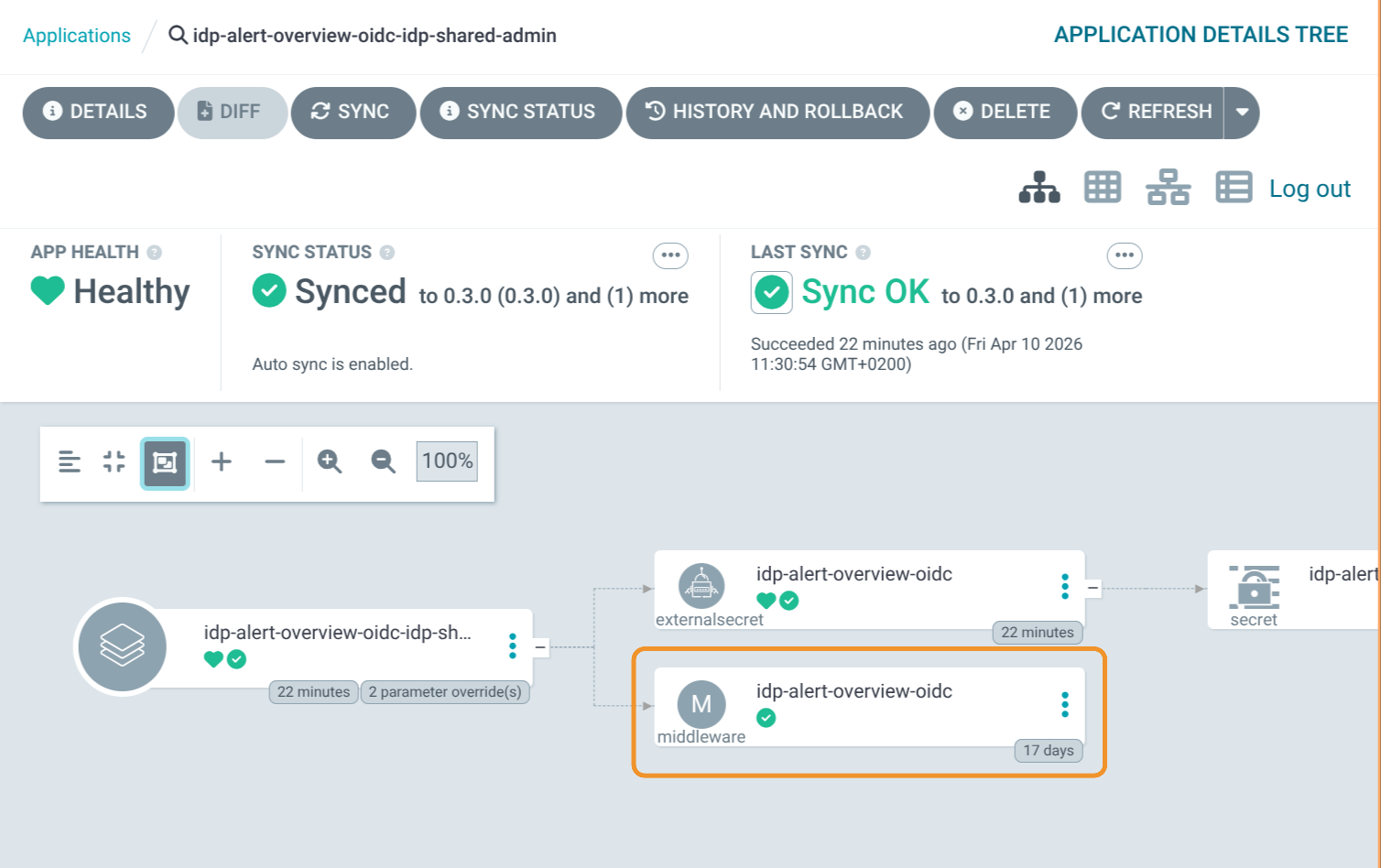
The screenshot is from the IDP team’s own deployment of this guide for their internal idp-alert-overview app, so the directory is named idp-alert-overview-oidc instead of myapp-oidc. The namespace is idp-shared-admin and the middleware name (from the resource tree) is idp-alert-overview-oidc, so the full reference becomes:
idp-shared-admin-idp-alert-overview-oidc@kubernetescrd
If your app uses ingress.private.enabled instead of public, add the middlewares: list under private: — same format.
Commit and let ArgoCD apply the change. Within a minute or two, requests to myapp.my-namespace.idp.jppol.dk should redirect to Entra ID for login.
Reading the user identity in your app
After successful login, every request your app receives will have these headers added by the middleware:
| Header | Value |
|---|---|
X-Forwarded-User | The user’s display name from Entra ID (e.g. Jane Doe) |
X-Forwarded-Email | The user’s email address (e.g. jane.doe@jppol.dk) |
Your app should trust these headers because they come from the in-cluster ingress, not from the client. Make sure your app does not accept X-Forwarded-User / X-Forwarded-Email from arbitrary sources — only via the cluster ingress path.
Example in Python (FastAPI):
from fastapi import FastAPI, Request

app = FastAPI()

@app.get("/")
def home(request: Request):
    user_name = request.headers.get("X-Forwarded-User", "anonymous")
    user_email = request.headers.get("X-Forwarded-Email", "")
    return {"hello": user_name, "email": user_email}
Bypassing authentication for specific paths
Use bypassPaths for paths that should be reachable without authentication. Common cases:
- Health checks (
/api/health,/healthz) - Prometheus metrics (
/metrics) - Public webhooks called by external services (e.g. Grafana alert webhooks)
- Static assets like favicon
bypassPaths:
  - /api/health
  - /metrics
  - /api/webhook/grafana
  - /favicon.ico
Each entry becomes an exact path match. The middleware combines them with logical OR.
Group-based access control (RBAC)
To restrict access to users in specific Entra ID groups, use assertClaims. This requires the Entra app to be configured to send groups as an optional claim (request this when ordering the Entra app via servicedesk).
authorization:
  assertClaims:
    - name: groups
      anyOf:
        - awssso-myapp-admin
        - awssso-myapp-user
Use anyOf to require the user to have at least one of the listed group display names. Use allOf to require all of them. You can stack multiple claims:
authorization:
  assertClaims:
    - name: groups
      anyOf:
        - awssso-myapp-user
    - name: roles
      allOf:
        - reader
Users without the required claims will receive a 403 Forbidden after login.
Troubleshooting
Login redirects loop or fail with “redirect_uri_mismatch”
The redirect URI you ordered from servicedesk does not match what the chart sends. The chart sends https://<domain>/oauth2/callback. Verify:
- Your
domainvalue invalues.yamlmatches your actual ingress hostname exactly (no trailing slash, correct subdomain) - The Entra app has
https://<domain>/oauth2/callbackas a registered redirect URI (open a servicedesk ticket if it needs to be added or corrected)
“Invalid session secret” or cookie errors
The session_secret must be exactly 32 characters. Generate a new one with openssl rand -hex 16 (or one of the alternatives shown in Step 1 if you do not have openssl) and update the AWS secret using the GitHub Action.
403 Forbidden after successful login
Either your assertClaims configuration is too strict, or the Entra app is not sending the expected claims. Check the Entra app’s optional claims configuration via servicedesk.
The middleware reports “secret not found”
The Kubernetes Secret created by the External Secrets Operator (ESO) is not yet ready. Verify:
kubectl get externalsecret -n <your-namespace>
kubectl get secret -n <your-namespace> | grep oidc
Both should exist and the ExternalSecret should show SecretSynced. If it does not, check the ExternalSecret events for AWS access errors:
kubectl describe externalsecret <name> -n <your-namespace>
Health checks failing despite bypassPaths
Verify the path in bypassPaths is an exact match for what your liveness/readiness probe is hitting. The middleware does not do prefix matching by default.
Support
For issues or questions:
- Check ArgoCD: both your main app and the OIDC middleware app should be Synced and Healthy
- Check ExternalSecret status with
kubectl describe externalsecret <name> - Contact the IDP team on Slack