Add Labels to ArgoCD Applications
How to Add Labels to Your Application
To add labels to your ArgoCD application, you need to modify your application.yaml file by adding a labels section.
Supported Characters in Labels
Labels in ArgoCD follow Kubernetes label syntax constraints:
- Key names must be 63 characters or less
- Keys can only contain alphanumeric characters, dashes (
-), underscores (_), and dots (.) - Keys must start and end with an alphanumeric character
For example: team-name, product_category, and version.number are all valid label keys.
Example:
apiVersion: v2
name: my-application
description: My application description
version: 0.1.0
# Add your labels here
labels:
  part-of: product-name
  team: frontend-team
helm:
  chart: helm/idp-advanced
  chartVersion: "1.5.0"
slack_channel: my-team-slack
How Labels Appear in ArgoCD
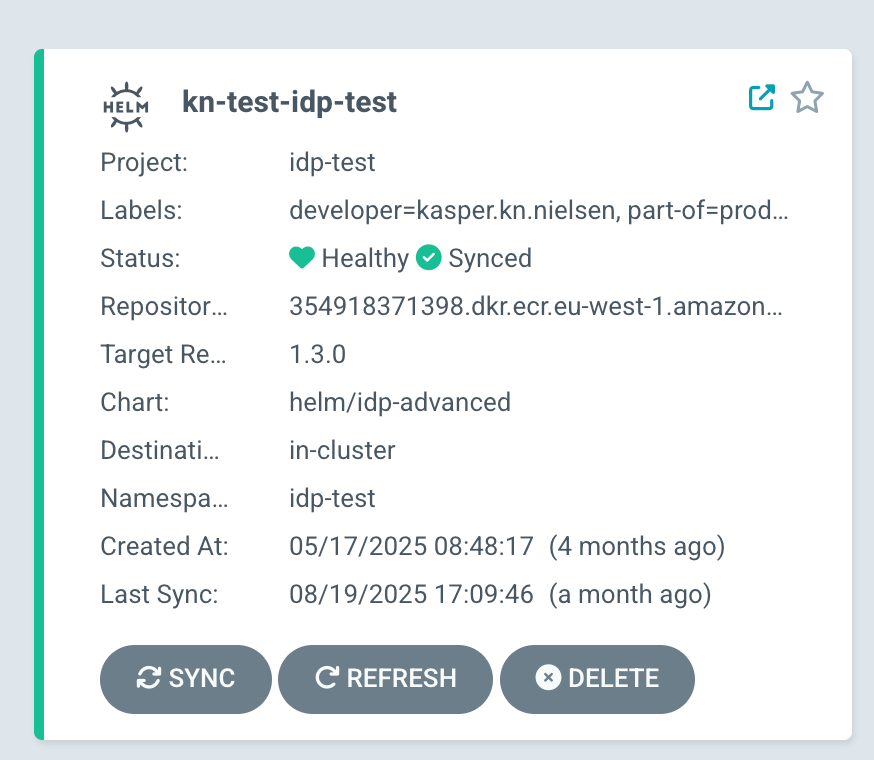
Once you’ve added labels to your application and deployed it, the labels will be visible in the ArgoCD UI as shown in the screenshot below:
Filtering Applications by Labels in ArgoCD
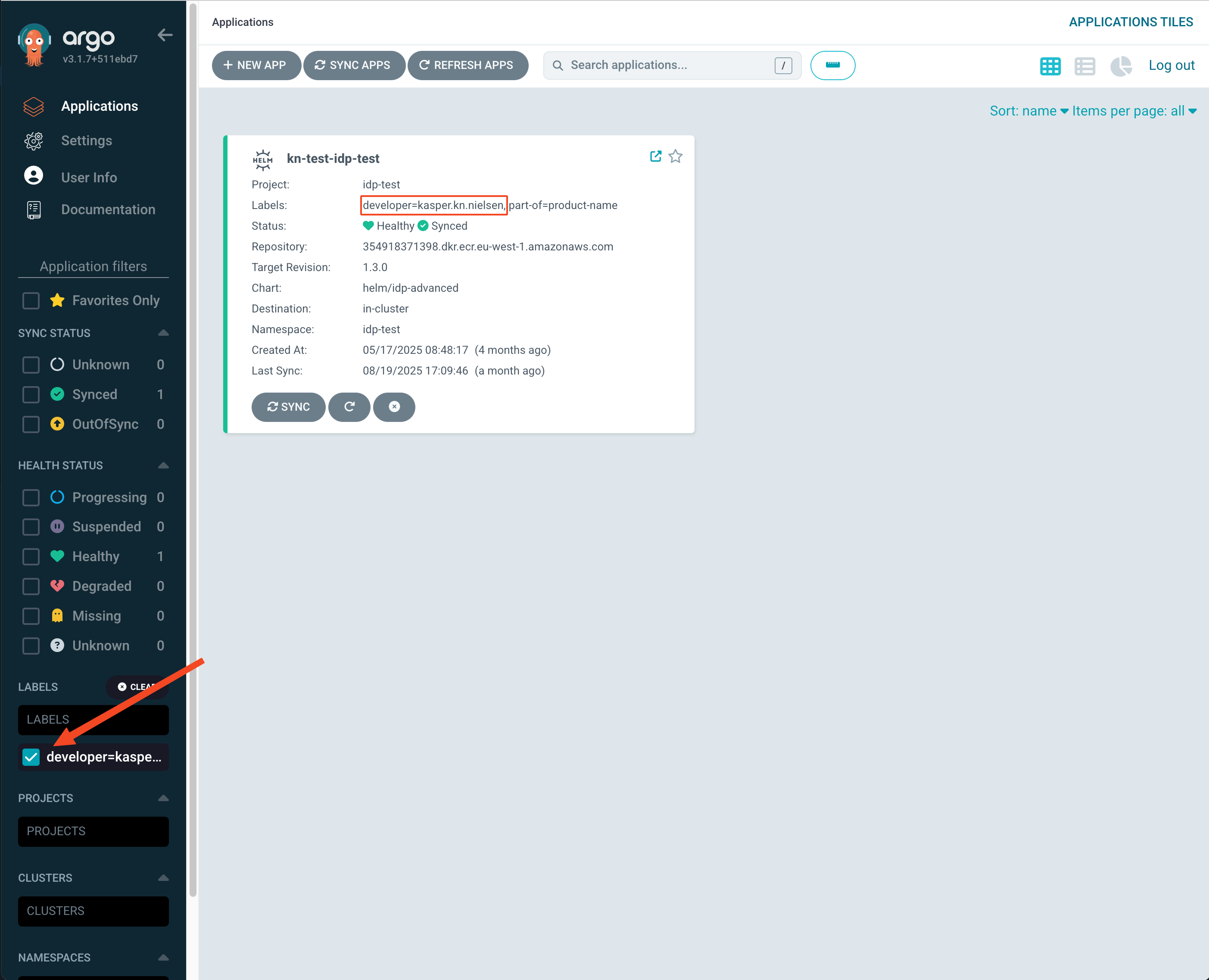
One of the most useful features of labels is the ability to filter applications in the ArgoCD UI:
- In the ArgoCD UI, navigate to the Applications view
- Look for the filter box in the top section of the UI
- Enter a label selector in the format
label=value(e.g.,part-of=kasper) - The UI will show only applications with that label
Best Practices
When implementing labels, follow these best practices:
- Use consistent naming conventions for labels
- Don’t create too many labels - focus on those that provide the most value
- Ensure labels are consistently applied across all applications
- Document your labeling strategy
- Use automation to enforce labeling standards